Commitments
A commitment lets you pre-pay for capacity you already run, at a lower rate. Reserved instances and savings plans are commitments. Orbit lists the commitments worth considering on the Commitments tab of the Recommendations page.
A commitment applies to a whole account, not to one resource. Nothing is switched off or resized. Only the rate changes.
A commitment is a promise to keep spending for its full term, even if your usage drops. Buy one only for usage you expect to keep.
Open it from Sensors > Recommendations, then choose the Commitments tab.
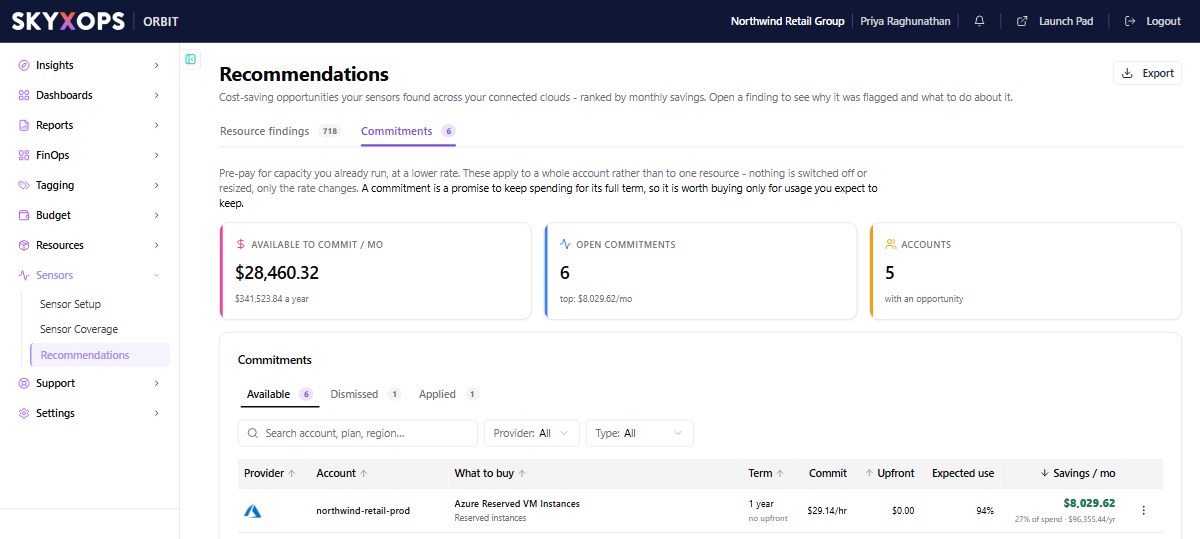
The summary
Three tiles sit above the list:
| Tile | What it shows |
|---|---|
| Available to commit / mo | The combined monthly saving of the open commitments, with the yearly figure beneath. |
| Open commitments | How many commitments are open, and the largest single monthly saving. |
| Accounts | How many accounts have at least one opportunity. |
The list
Each row is one suggested purchase for one account.
| Column | What it shows |
|---|---|
| Provider | The cloud the commitment is for. |
| Account | The account it applies to. |
| What to buy | The plan, for example a Compute Savings Plan or Azure Reserved VM Instances, and its type. |
| Term | The length of the commitment and the payment option, for example 1 year, no upfront. |
| Commit | The hourly amount you commit to. |
| Upfront | What you pay on purchase. A dash means the provider does not report an upfront amount. |
| Expected use | How much of the commitment your measured usage would consume. A dash means there is no estimate. |
| Savings / mo | The monthly saving, with its share of current spend and the yearly figure. |
Three lists hold the commitments: Available, Dismissed and Applied. Use the search box and the Provider and Type filters to narrow a list. Export downloads it.
Compare terms and payment options
Click a row to open its details.
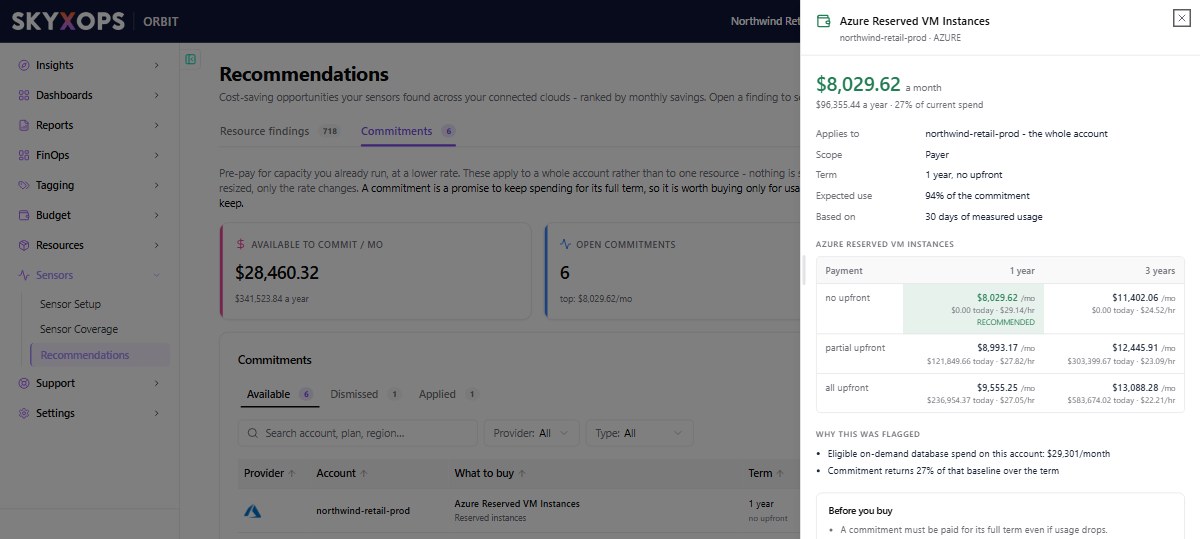
The panel shows:
- the monthly and yearly saving, and its share of current spend;
- the account it applies to, the term, the expected use, and how many days of measured usage the estimate is based on;
- a table of the options on offer, by term (1 year or 3 years) and payment (no upfront, partial upfront or all upfront). Each option shows its monthly saving, what you pay today and the hourly commitment. The option Orbit suggests is marked as recommended;
- why the commitment was flagged, and what to check before you buy.
When two plans cover the same spend, Orbit shows both so you can compare them. Buy one and not both.
Orbit does not buy anything. You make the purchase in your cloud provider's console.
Snooze, dismiss or restore
Open the actions menu at the end of a row:
| Action | What it does |
|---|---|
| Snooze… | Moves the commitment to the Dismissed list for 7, 30 or 90 days. It comes back on its own. |
| Dismiss | Moves the commitment to the Dismissed list. You can restore it at any time. |
| Restore | Moves a snoozed or dismissed commitment back to the Available list. |
FAQ
Will buying a commitment change my resources?
No. A commitment changes the rate you pay. Nothing is switched off or resized.
Why is Expected use a dash?
Either the cloud provider does not estimate how much of the commitment would be used, or no estimate was recorded. Hover over the dash to see which.
Why are some options shown but not recommended?
Orbit shows the other terms and payment options so you can compare them. An option that is not recommended says so, with the reason where one is available.