Connect your clouds
Orbit reads cost and resource inventory from your cloud accounts. Connecting an account is a two-part flow: you grant Orbit read-only access on the cloud side, then paste a few details into Orbit's Connect account wizard.
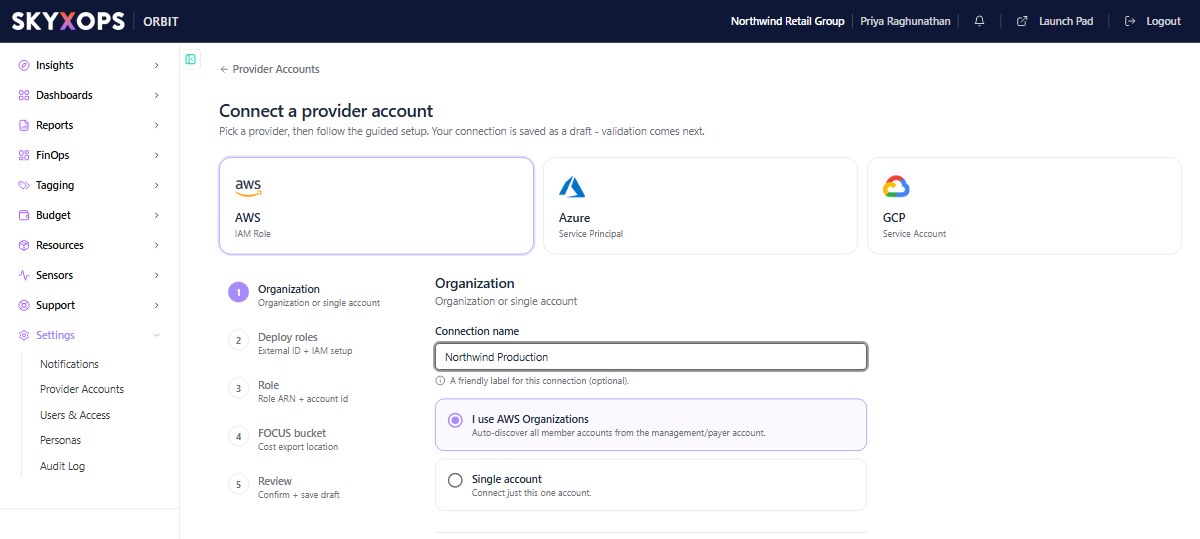
Supported providers
| Provider | Access method | Cost data |
|---|---|---|
| Amazon Web Services | Cross-account IAM role | FOCUS export in S3 |
| Microsoft Azure | Service principal (app registration) | FOCUS cost export in blob storage |
| Google Cloud | Service account | Billing export in BigQuery |
An AWS organization, Azure tenant, or GCP org connected at the top level auto-discovers its member accounts, subscriptions, or projects.
The Connect account wizard
From Settings > Provider Accounts, choose Connect account. The wizard walks you through the same shape for every provider:
| Step | What happens |
|---|---|
| 1. Organization vs single | Connect a whole org/tenant (auto-discover members) or just one account. |
| 2. Deploy access | Create the read-only role / principal / service account in your cloud with the identifiers Orbit shows you (an External ID + Client ID for AWS, an app registration for Azure, a service account for GCP). |
| 3. Enter credentials | Paste the role ARN / app registration / service-account key back into Orbit. |
| 4. Cost export | Point Orbit at the S3 bucket / blob container / BigQuery dataset that holds your cost export. |
| 5. Review | Orbit saves the connection as a draft, then validates access. |
Your connection is saved as a draft first. Validation and the first data pull come next.
What to expect
- Orbit's access is read-only. It never modifies your resources.
- Costs are loaded once a day, for the previous day. Your first costs appear the day after your billing export first delivers data, and days before that don't appear automatically. Resource inventory is refreshed daily too.
- Everything Orbit shows is normalized to effective cost so numbers are comparable across clouds.