Sensor Coverage
Sensor Coverage shows which sensors run in which cloud accounts. Sensor Setup decides what runs for all accounts. Sensor Coverage lets you switch sensors off for individual accounts. An account can run fewer sensors than Sensor Setup allows, never more.
Open it from Sensors > Sensor Coverage.
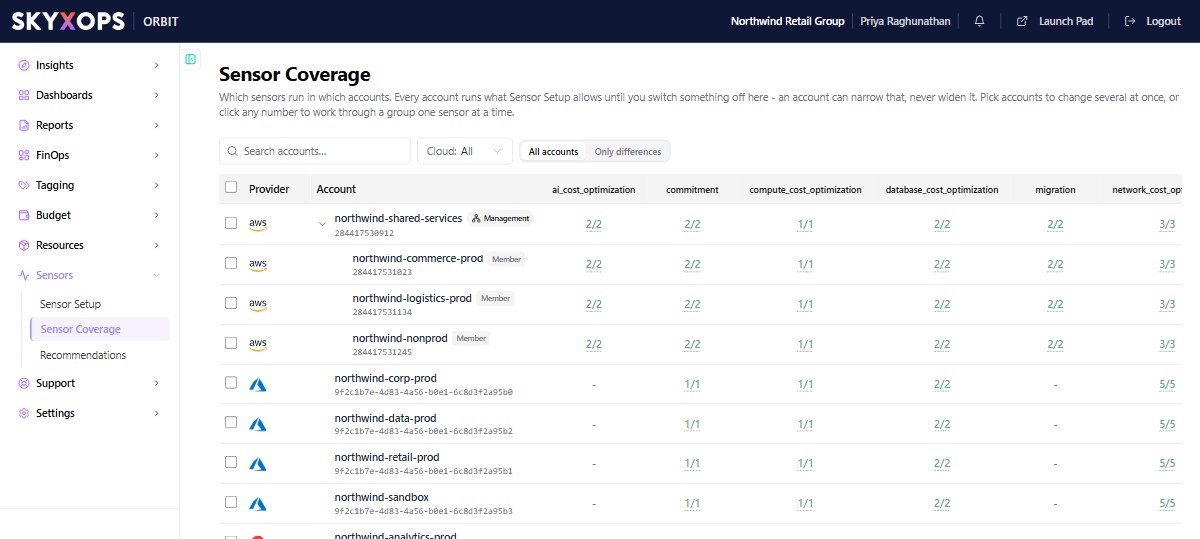
Reading the grid
Each row is a cloud account. Member accounts are listed under their management account. Each column is a sensor category, such as rightsizing or commitment.
A cell shows how many of that category's sensors run in the account. 2/2 means both sensors in the category run there. A dash means the category has no sensors for that account's cloud.
A faded number means the account follows the all-accounts setting from Sensor Setup. A solid number means someone changed the setting on that account. Hover over a number to read which one applies.
Use the controls above the grid to narrow the list:
| Control | What it does |
|---|---|
| Search | Finds accounts by name. |
| Cloud | Shows the accounts of one provider. |
| All accounts | Shows every account. |
| Only differences | Hides the accounts that follow the all-accounts setting, so you see only the ones with a setting of their own. |
Change the sensors for one account
- Click a number in the account's row. Orbit lists the sensors in that category for that account.
- Tick a sensor to run it in this account, or clear the tick to switch it off.
- Choose Apply. The button shows how many changes you are about to make.
The changes affect that account only.
A sensor that is switched off for all accounts in Sensor Setup is locked here. You cannot enable it for one account.
Change several accounts at once
Tick the accounts you want to change. A bar appears with three actions:
| Action | What it does |
|---|---|
| Enable | Clears the selected accounts' own settings, so they run everything Sensor Setup allows. |
| Disable | Switches the sensors off for the selected accounts. |
| Copy from… | Copies the settings of another account onto the selected accounts. |
When you choose Copy from…, pick the account to copy from. Orbit shows how many changes the copy would make before you confirm. Accounts on a different cloud are left untouched, because they have no sensors in common with the account you are copying from.
Who can use this page
Viewing Sensor Coverage needs the View permission on Sensors. Changing which sensors run needs the Create/Edit permission on Sensors. See Personas.
FAQ
What does a new account run?
A newly discovered account has no setting of its own, so it follows the all-accounts setting from Sensor Setup.
Why can't I enable a sensor for one account?
The sensor is switched off for all accounts in Sensor Setup. An account can narrow what Sensor Setup allows, but it cannot run a sensor that Sensor Setup has switched off.
Do member accounts take their settings from the management account?
No. Each account has its own settings. Members are shown under their management account, but changing the management account does not change its members.