Notifications
Orbit sends you notifications about things such as budget thresholds and your weekly savings summary. You read them in Orbit, and you choose which ones are also emailed to you.
The bell
The bell in the top bar opens your latest notifications. Choose View all notifications to open the full list.
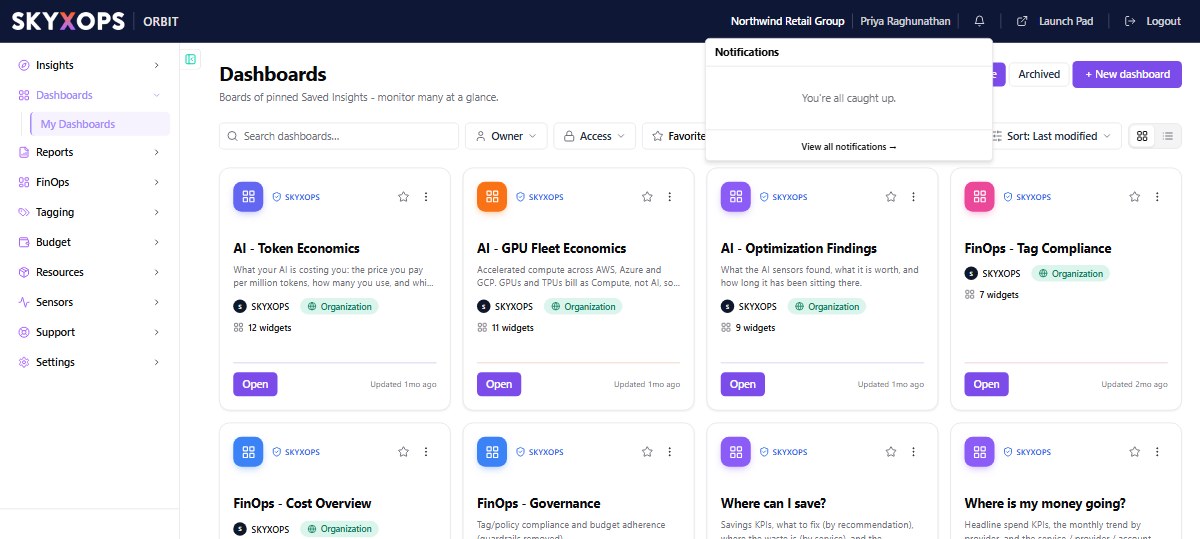
The Notifications page
Open Settings > Notifications to see everything you have been sent.
Three filters narrow the list:
| Filter | Choices |
|---|---|
| Show | All, or only Unread. |
| Type | One kind of notification. |
| Period | Last 30 days, Last 90 days, or All time. |
Click a notification to open what it is about. Each notification also has two actions:
| Action | What it does |
|---|---|
| Mark read | Marks that notification as read. |
| Dismiss | Removes that notification from the list. |
Above the list, Mark all read marks every notification as read, and Clear read removes the ones you have already read.
Choose what is emailed to you
On the Notifications page, choose Preferences.
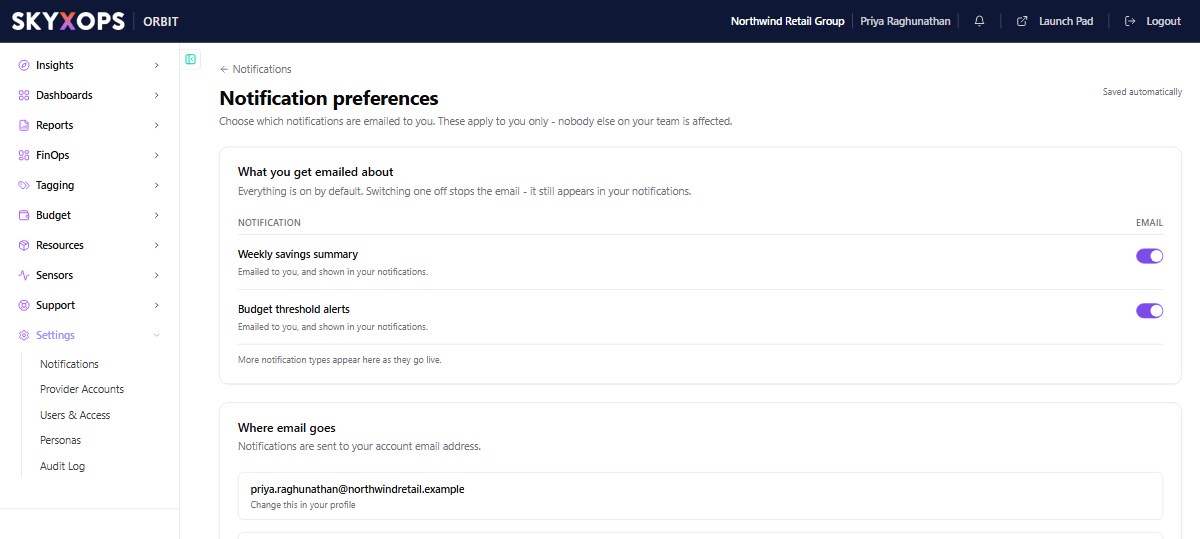
Each kind of notification has an Email switch:
| Notification | What you get |
|---|---|
| Weekly savings summary | Emailed to you, and shown in your notifications. |
| Budget threshold alerts | Emailed to you, and shown in your notifications. |
Everything is on by default. Switching one off stops the email. The notification still appears in Orbit. Your changes are saved automatically.
These preferences apply to you only. Nobody else on your team is affected.
Emails go to your account email address, which is shown on the page. Account email, such as invitations, invoices and password resets, is always sent and cannot be switched off here.
FAQ
I switched off an email. Will I still see the notification?
Yes. Switching off the email stops the email only. The notification still appears in your notifications in Orbit.
Can I change the settings for my whole team?
No. Notification preferences are per person. Each teammate sets their own.
Where do budget alerts come from?
From the alert thresholds on each budget. See Budget details and alerts.