Connect AWS
Connecting AWS gives Orbit a read-only IAM role (for resource inventory) and access to your FOCUS export in S3 (for cost).
You deploy one CloudFormation template. The same template handles a single account and a whole AWS Organization. The difference is one parameter.
Prerequisites
-
Administrative access to the account you want to connect. For an organization, use the management (payer) account.
-
Permission to deploy a CloudFormation stack that creates named IAM roles.
-
A FOCUS 1.0 export already delivering to an S3 bucket. If you don't have one, see creating a standard data export. Choose the FOCUS 1.0 table and deliver it in Parquet.
-
If you are connecting an organization, run this once in the management account before deploying, or the org-wide rollout fails:
aws cloudformation activate-organizations-access --region us-east-1
Step 1: Organization or single account
In Settings > Provider Accounts > Connect account, pick AWS and choose your scope.
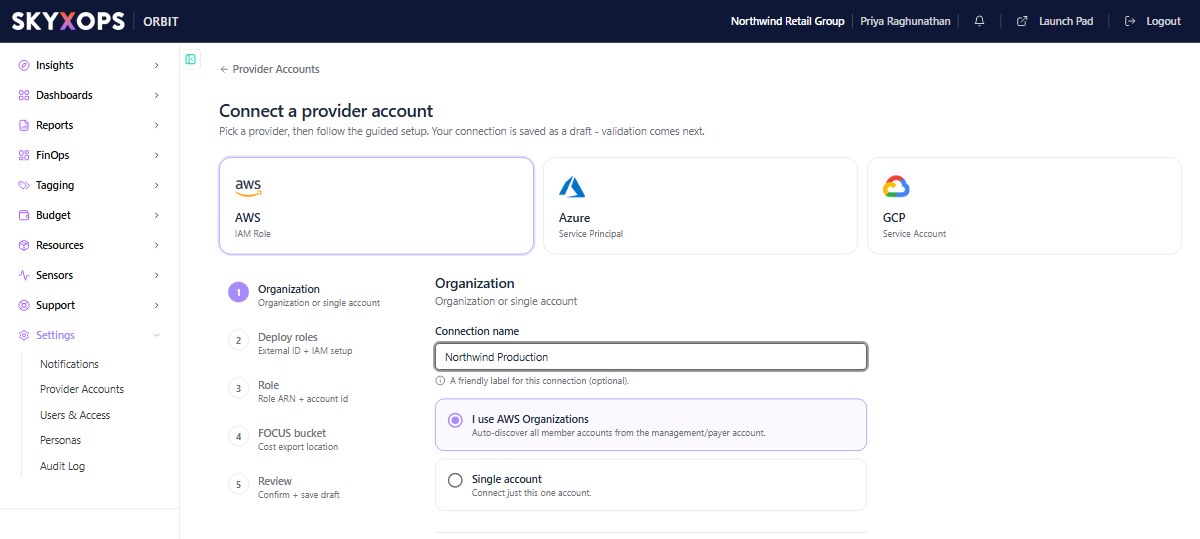
- Choose I use AWS Organizations to connect at the management/payer account. Orbit discovers all member accounts.
- Choose Single account to connect just this one account (good for a pilot).
Step 2: Deploy the onboarding template
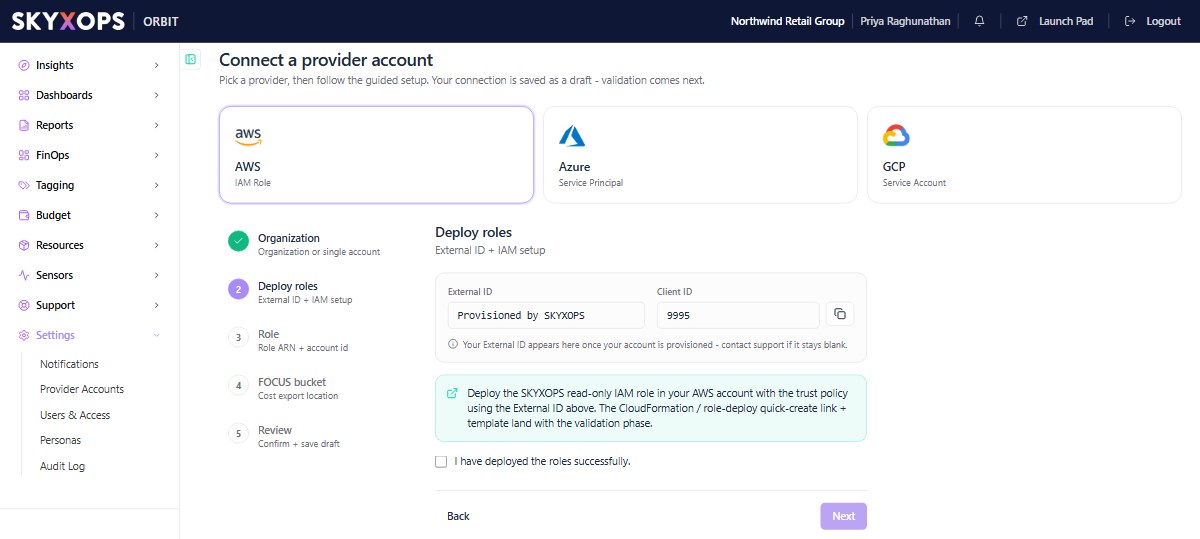
Orbit shows you an External ID and a Client ID. You paste both into the template.
-
Copy the External ID and Client ID from the wizard.
-
In CloudFormation > Create stack > With new resources, upload the template and fill in the parameters:
Parameter What to enter ClientId The Client ID from the wizard. ExternalId The 16-character External ID from the wizard. Copy it exactly. FOCUSS3Path The full S3 location of your export, including the trailing slash, e.g. s3://my-cost-bucket/focus/. Not a bare bucket name.DeployMemberRoles falsefor a single account.trueto onboard every account in your organization.TargetOrganizationalUnitIds Only when DeployMemberRoles=true: the OU id(s) to onboard, or your organization root id for the whole org. Leave blank for a single account.SKYXOPSAccountId Leave the default unless SKYXOPS tells you otherwise. -
On the last page, tick I acknowledge that AWS CloudFormation might create IAM resources with custom names, then create the stack.
-
Back in the wizard, tick I have deployed the roles successfully and continue.
With DeployMemberRoles=true the template creates a CloudFormation StackSet that pushes the same read-only role into every account in the OUs you targeted. You don't create or configure the StackSet yourself. Automatic deployment is on, so accounts added to those OUs later are onboarded for you.
Step 3: Enter the role ARN
From the CloudFormation stack Outputs, copy skyxopsRoleArn and paste it into the wizard, along with your management (payer) account ID.
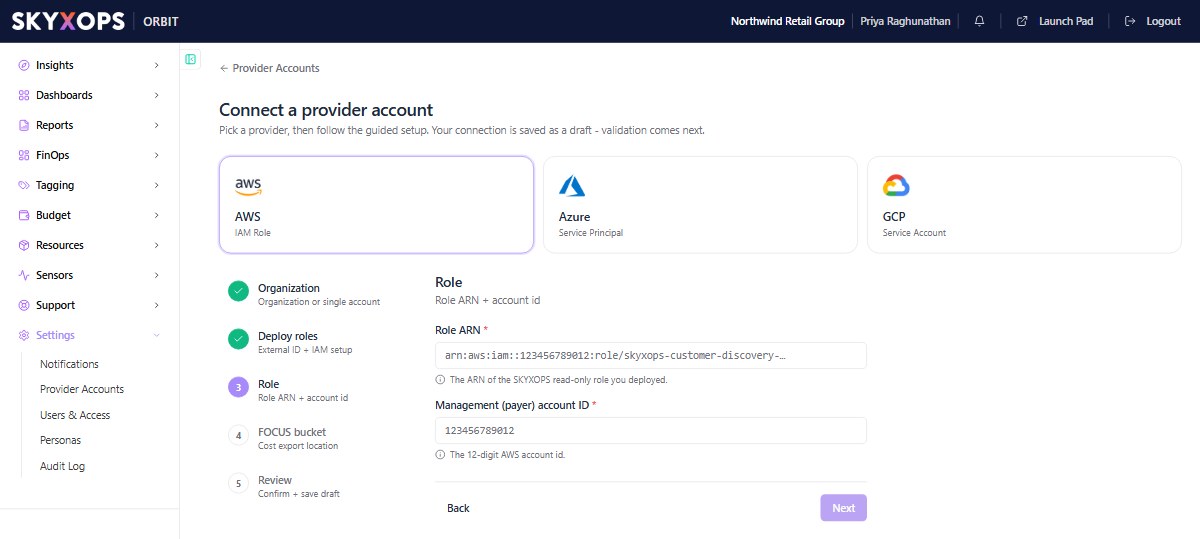
- The Role ARN looks like
arn:aws:iam::123456789012:role/skyxops-customer-discovery-<your-client-id>. - The Management (payer) account ID is your 12-digit AWS account id.
For an organization, the stack also outputs skyxopsMemberStackSetId, which is the id of the StackSet that rolled the role out to your member accounts. Orbit doesn't need it, but it's useful if you want to check rollout status in the CloudFormation console.
Step 4: Point Orbit at your cost export
The wizard asks for the bucket and the prefix as two separate fields, and shows you the combined path as you type.
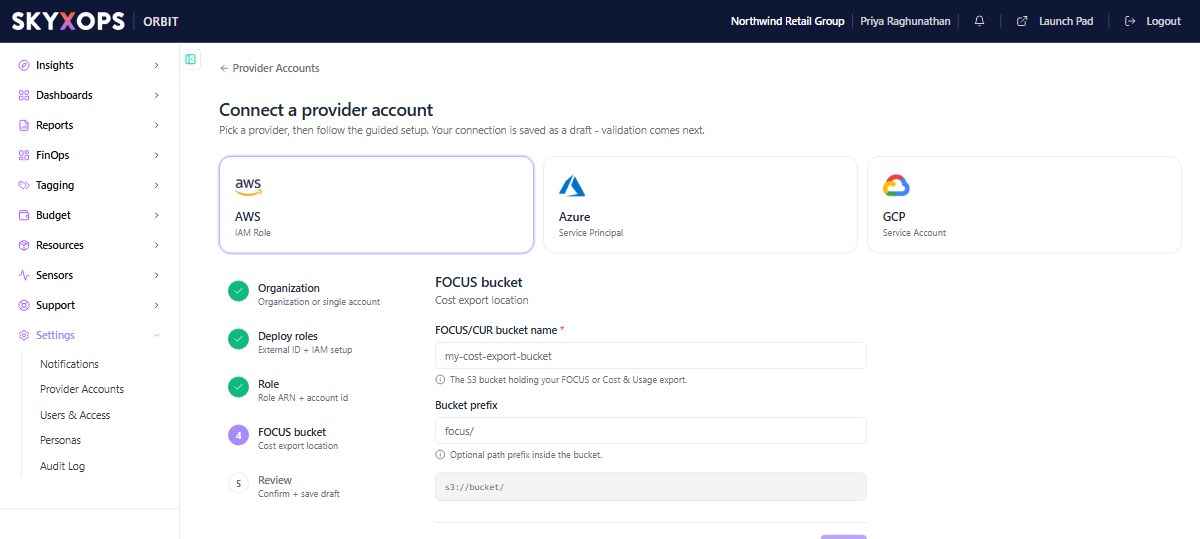
- The FOCUS/CUR bucket name is the S3 bucket holding your export, e.g.
my-cost-bucket. - The Bucket prefix is required. Enter the folder that contains your export folder, e.g.
focus/, not the export folder itself. Orbit finds the export subfolder under it. If the prefix is left empty, Orbit loads no costs.
These are the same two values you combined into FOCUSS3Path in Step 2: s3:// + bucket + / + prefix. The wizard's path preview should read exactly what you deployed: s3://my-cost-bucket/focus/.
The role's read access is scoped to precisely the path you deployed, so if the bucket or prefix here doesn't match FOCUSS3Path, Orbit finds no files and ingests nothing, without an error. If you later move the export, update the wizard and redeploy the stack with the new path.
Step 5: Review and validate
Review your entries and finish. Orbit saves the connection as a draft, then validates the role and the export. Once validated, cost and inventory begin ingesting. First data appears within about 24 hours.
What the template creates
SKYXOPS's access is read-only. Setting up the stack makes the two Resource Explorer changes described below.
- An IAM role,
skyxops-customer-discovery-<your-client-id>, which SKYXOPS assumes using the External ID as a shared secret. It carries the AWS-managed ViewOnlyAccess policy (resource metadata, no data), plus scoped permissions for Cost Explorer, billing views, Organizations, tags, Resource Explorer, and one AWS Config action used to tell how long a resource has been idle. - S3 read access limited to your export folder. The policy is built from
FOCUSS3Path, so the role cannot read the rest of the bucket. - Two changes to Resource Explorer, which Orbit's inventory needs. The template sets your Resource Explorer index to type AGGREGATOR so it covers every region, and creates one if you have none. It also creates a default view if you have none. The same happens in each member account. Removing the stack sets an index it promoted back to LOCAL. Your index and view are never deleted.
- For organizations only, a StackSet named
skyxops-customer-discoverythat deploys the same role into your member accounts, in one region per account (IAM roles are global).
FAQ
Do I connect every member account?
No. Deploy once in the management account with DeployMemberRoles=true and the template rolls the role out across the OUs you targeted.
What can Orbit do in my account?
Read cost and resource metadata only. The role is read-only. See "What the template creates" above for the full list.
The org-wide rollout failed.
The most common cause is skipping the prerequisite. From the management account, run aws cloudformation activate-organizations-access --region us-east-1, then update the stack. Also confirm your organization has all features enabled. Trusted access for StackSets requires it.
My data hasn't appeared.
Confirm the export is delivering to the exact path you gave as FOCUSS3Path, and that the role ARN in the wizard matches the stack's skyxopsRoleArn output. First ingest can take up to 24 hours.