Connect GCP
Connecting GCP gives Orbit a read-only service account (for resource inventory) and a BigQuery billing export (for cost). The Connect account wizard walks you through it. This guide covers the Google Cloud work each step expects.
Prerequisites
- A GCP project with billing enabled.
- Owner or Editor on the project (and organization access, if connecting org-wide).
- Access to the Google Cloud Console and Cloud Shell.
Step 1: Organization or single project
In Settings > Provider Accounts > Connect account, pick GCP and choose your scope.
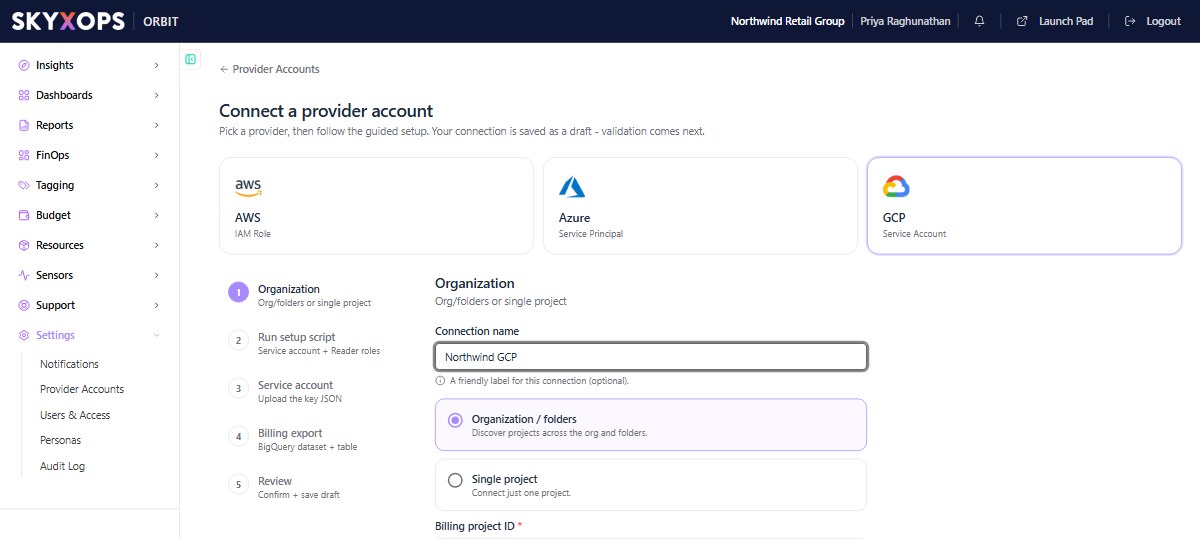
- Choose Organization / folders to have Orbit discover projects across the org and folders.
- Choose Single project to connect just one project.
Enter a billing project ID so Orbit knows where your billing export lives.
Step 2: Run the setup script
Orbit provides a setup script that creates the read-only service account and grants the Reader roles.
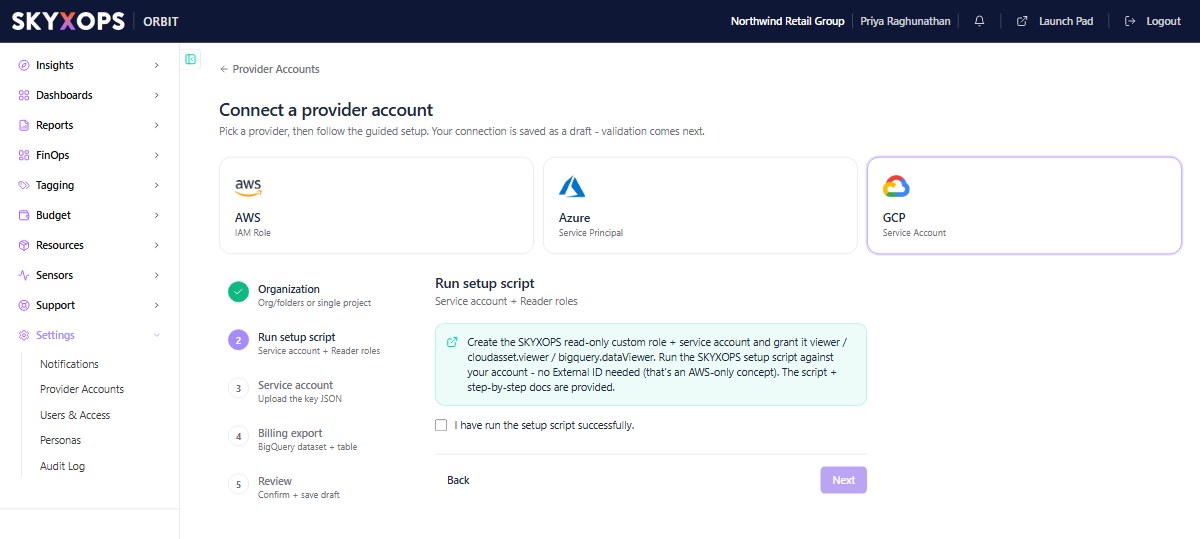
- Download the GCP setup script.
- Open Cloud Shell (
shell.cloud.google.com) and upload the script. - Open the script and set the values at the top:
CLIENT_IDandSKYXOPS_PROJECT_ID(both provided by SKYXOPS) andPROJECT_ID(your GCP project). - Run it:
chmod +x skyxops-client-gcp-iam-setup.sh
gcloud config set project YOUR_PROJECT_ID
./skyxops-client-gcp-iam-setup.sh - The script writes a key file named
skyxops-<client-id>-service-account-key.json. Download it from Cloud Shell. You upload it in the next step.
Run the script once, whichever scope you chose.
- If you chose Organization / folders, the script lets the service account see your organization and folder structure, and gives it read access to the one project you set in
PROJECT_ID. To cover more projects, the service account needs the Viewer role on each of them, or at the organization level. - If you chose Single project, the script grants Reader on just that project.
Either way you end up with one service account and one JSON key to upload.
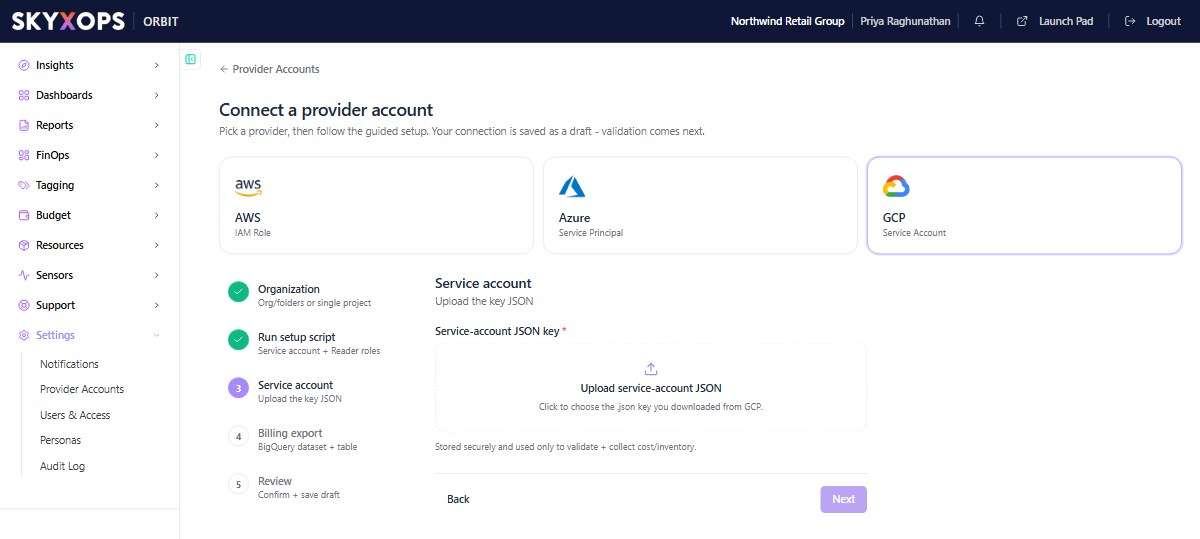
Step 3: Upload the service-account key
Back in the wizard, upload the JSON key the script produced. It carries the credentials and read-only permissions Orbit needs.
Step 4: Point Orbit at your billing export
Orbit reads cost from a BigQuery billing export. Give the wizard the dataset and table.
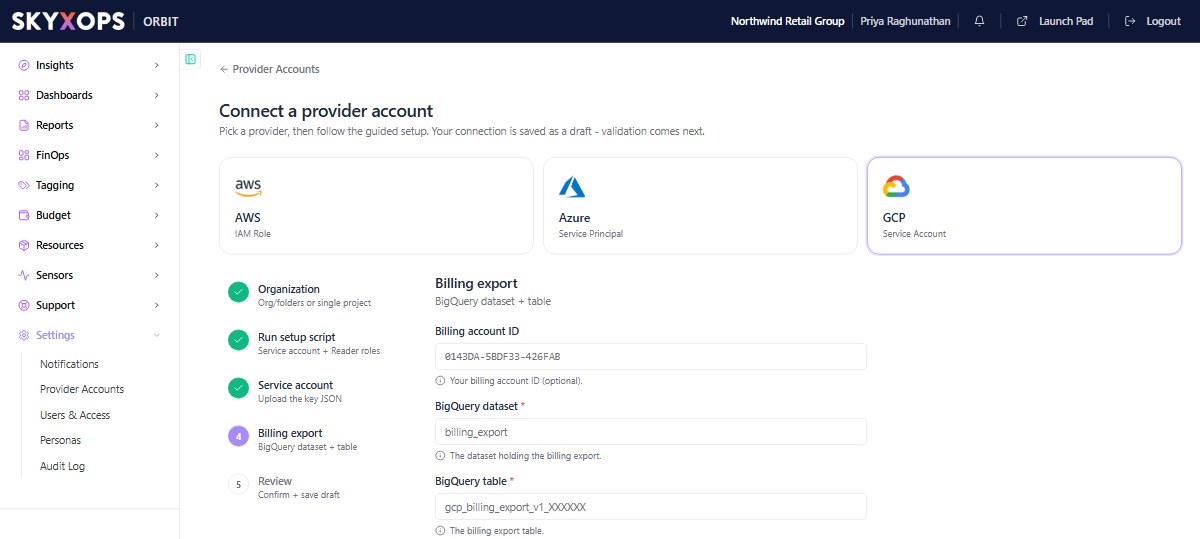
- In BigQuery dataset, enter the dataset, e.g.
billing_export_dataset. - In BigQuery table, enter the table, e.g.
gcp_billing_export_resource_v1_XXXXXX_XXXXXX_XXXXXX.
If you don't already have one, create it in Billing > Billing export > BigQuery export. Enable Detailed usage cost and Pricing exports to the dataset above. See Google's guide on exporting billing data to BigQuery.
Step 5: Review and validate
Review your entries and finish. Orbit saves the connection as a draft, then validates the service account and the export. Once validated, cost and inventory begin ingesting. First data appears within about 24 hours.
FAQ
Does the billing export backfill history?
It depends on where the dataset is. For a dataset in a multi-region location (US or EU), Google backfills the usage cost export for the current and previous month. For other locations, data starts on the day you enable the export. Pricing data is never backfilled. Enable the exports as early as possible.
What access does the service account have?
Read-only (Reader roles) for cost and resource metadata.
No data after a day?
Confirm the billing export is active and writing to the dataset/table you gave Orbit, and that the service-account key uploaded successfully.