Organization Hierarchy
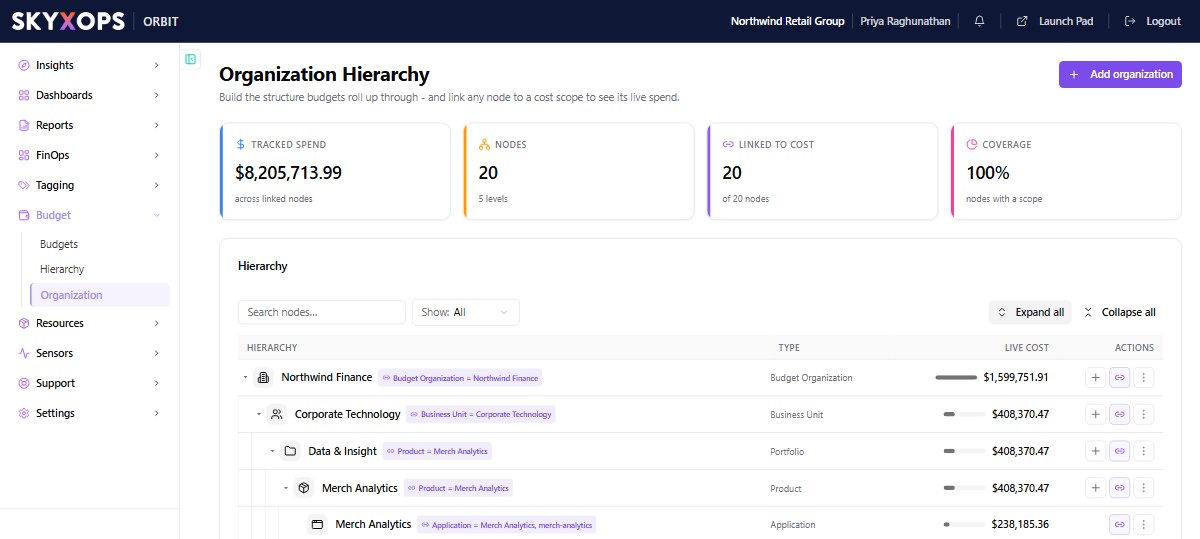
Organization Hierarchy (Budget > Organization) is where you build the structure budgets roll up through. You also link any node to a cost scope here to see its live spend.
The 5 levels
The tree nests one level at a time, in this order:
Budget Organization, then Business Unit, then Portfolio, then Product, then Application.
Budget Organization is the name of the top level in the tree (the root node type). Don't confuse it with this page, Organization Hierarchy (reached via Budget > Organization), which is where you build the whole tree, including its Budget Organization roots.
Each entry is a node with a parent and children. Start with Add organization (a root Budget Organization), then use the + on a row to add the next level down under it. You can rename or delete a node. You can't delete a node that still has children or budgets on it: remove those first.
Linking a node to a cost scope
A node on its own is just structure. It becomes useful when you link it to a cost scope, because the link is what makes its spend appear. A cost scope is one of two kinds, chosen from a single picker with two groups:
| Group | What it is | Values |
|---|---|---|
| Tags | A Virtual Tag | one or more of that tag's values (e.g. Team = Payments) |
| Fields | A native FOCUS dimension: Provider, Account, or Service | one or more of that field's values (e.g. an account) |
So a link is always {tag or field} = {one or more values}.
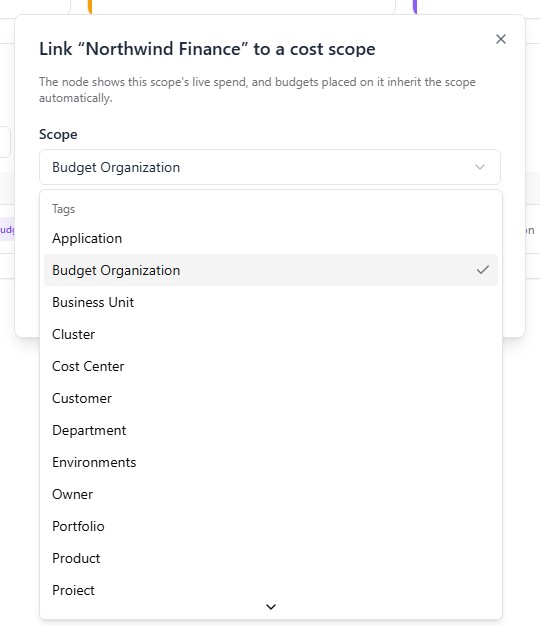
If you pick a Virtual Tag that has no tag keys mapped yet, Orbit asks you to set up its keys in Virtual Tags first (so resources actually get tagged with it), then link it here.
Once linked, the row shows a link pill (key = values…) and the node's Live cost, which is the all-time FOCUS EffectiveCost for that scope.
What's on the page
The page has these KPI cards:
| Card | What it shows |
|---|---|
| Tracked spend | Across linked nodes |
| Nodes | Total, across 5 levels |
| Linked to cost | How many nodes have a scope |
| Coverage | Linked ÷ total |
The page also has the Hierarchy tree table, with the columns Hierarchy, Type, Live cost, and Actions. The table has expand/collapse, a node search, and a Show filter (Linked only or Unlinked only).
How budgets use it
You place a budget on a node (in the Create/Edit Budget flow). From then on, the budget inherits the cost scope of every linked node on its path up the tree. These scopes are ANDed together and resolved live, so re-linking a node instantly updates the budgets under it. The consolidated roll-up is shown in Budget Hierarchy.
FAQ
Tags vs Fields: which should I use?
Prefer a Virtual Tag so business structure drives the scope. Use a Field (Provider / Account / Service) when a node maps cleanly to a specific cloud account or service.
What if a node's Live cost looks low?
Check its cost scope and your Virtual Tag coverage. Spend only lands on the node if resources resolve to the linked tag/field values.
Does the node link snapshot the spend?
No. It's resolved live. Re-linking or clearing a node's scope immediately changes its Live cost and the actuals of any budget below it.